
How to get started online for free

We offer you the possibility to use our software for 30 days free of charge. After the trial period, all data in your user account will be automatically and completely deleted if you have not opted for paid use. You can find detailed information in our terms of use.

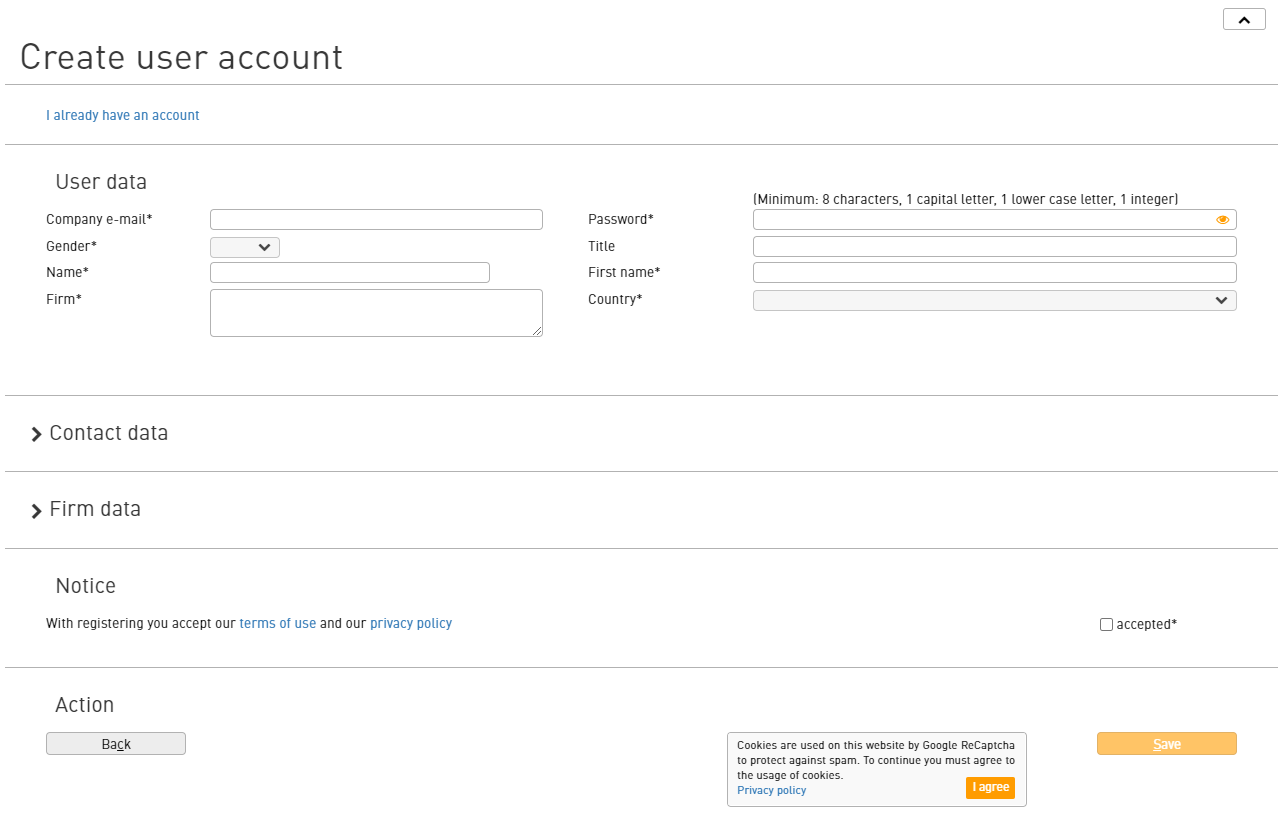
To create your user account

Please register with your company e-mail address and the corresponding mandatory fields. All other fields are optional and can be added at any time.

Cookies are used by Google ReCaptcha for spam protection.

You will receive a confirmation email

After successful registration, you will receive an email with the activation link for your cloud account.
Clicking on this link opens the registration mask.

This e-mail serves as a double opt-in procedure and is intended to provide protection against spam in the event of misuse of your address.

Now your cloud account is ready to go

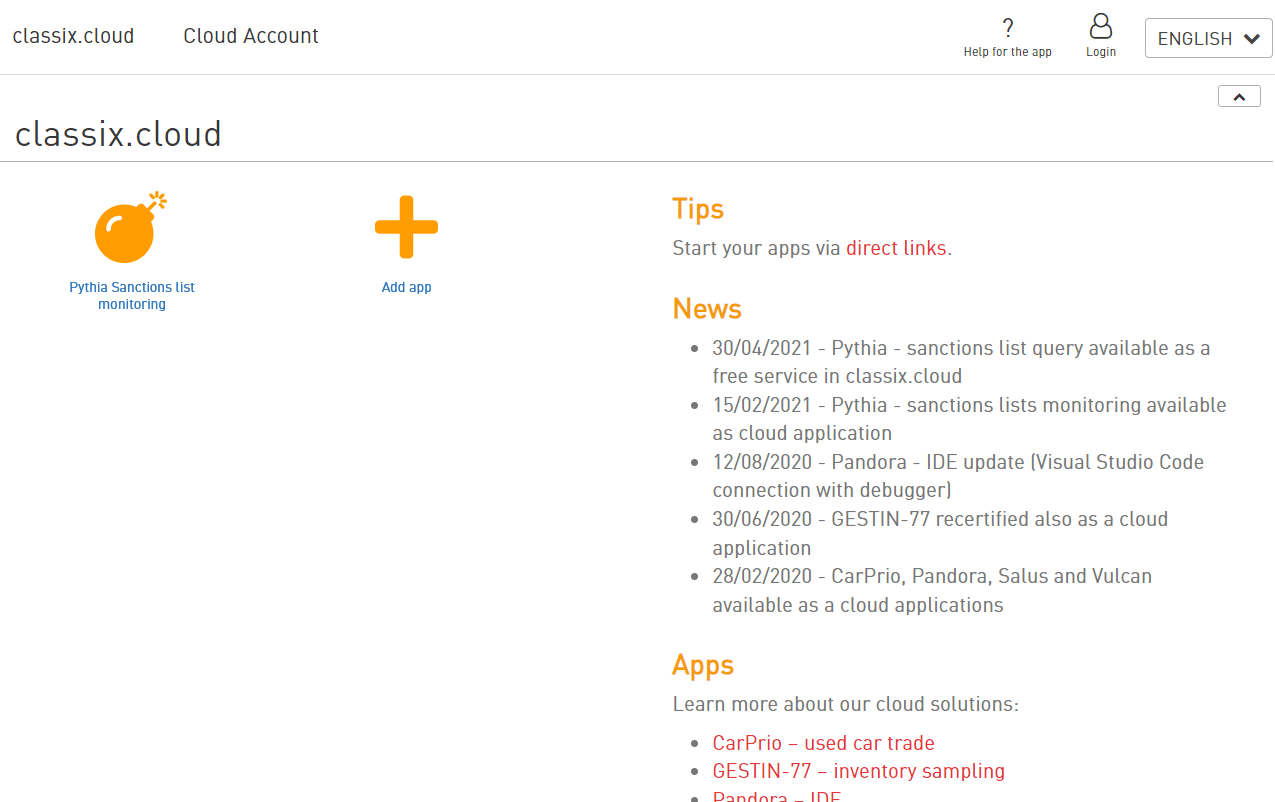
After successful login, you are in your cloud user account.

The PYTHIA app suite you have selected is displayed in the dashboard and can be started from there.

Tip - direct link

After you have started PYTHIA the first time via the user account, you can then also start PYTHIA via a direct link – without having to go via the user account.

Import data

We provide you with template files for the direct import of your personal or company data.

Of course, the upload and matching of data can also be done via our PYTHIA API.

Column Description
uniqueId This column defines a unique identifier across all datasets and is used to identify this entry inside the database. Using an already known id will overwrite the previous database entry with this id.
entity This column specifies the subject type. Can be either individual or organization (or the respective short forms i or o).
name Surname of individual or company name for organization.
location A more detailed description of the address (street/post office box).
city The city where the subject's address is located.
zipCode The postcode of the subject's address.
country The country in which the address of the person concerned is located. The preferred import interpretation is an ISO 3166-1 Alpha-2 country code. The rules for interpreting this field are described below.
The country column is interpreted as follows: ISO 3166-1 Alpha-2 country code, if it consists of two letters ISO 3166-1 Alpha-3 country code if it consists of three letters
International vehicle registration code if it consists of 1-3 letters and has not been recognised as one of the above codes
firstName A person's first name. Only for individuals
middleName A person's middle name. Only for individuals
gender A person's gender. Can be one of male/female/diverse or the corresponding abbreviations (m/f/d). Only for individuals
dateOfBirth A person's date of birth. When uploading a CSV file, the dateFormat can be specified using the placeholders YYYY, MM and DD. The default setting is ‘YYYY-MM-DD’. For individuals only

If the CSV/XLSX file does not contain a header, an import format must be specified in the import settings of the Pythia module. If no import settings have been specified and the imported file does not contain a header, the import will fail.

If the header for the entity is not present, all subjects with firstName, middleName, gender or dateOfBirth will be treated as individuals and all other subjects as organisations.

The PYTHIA API documentation makes it easy for you to get started with examples that you can run directly within the documentation.

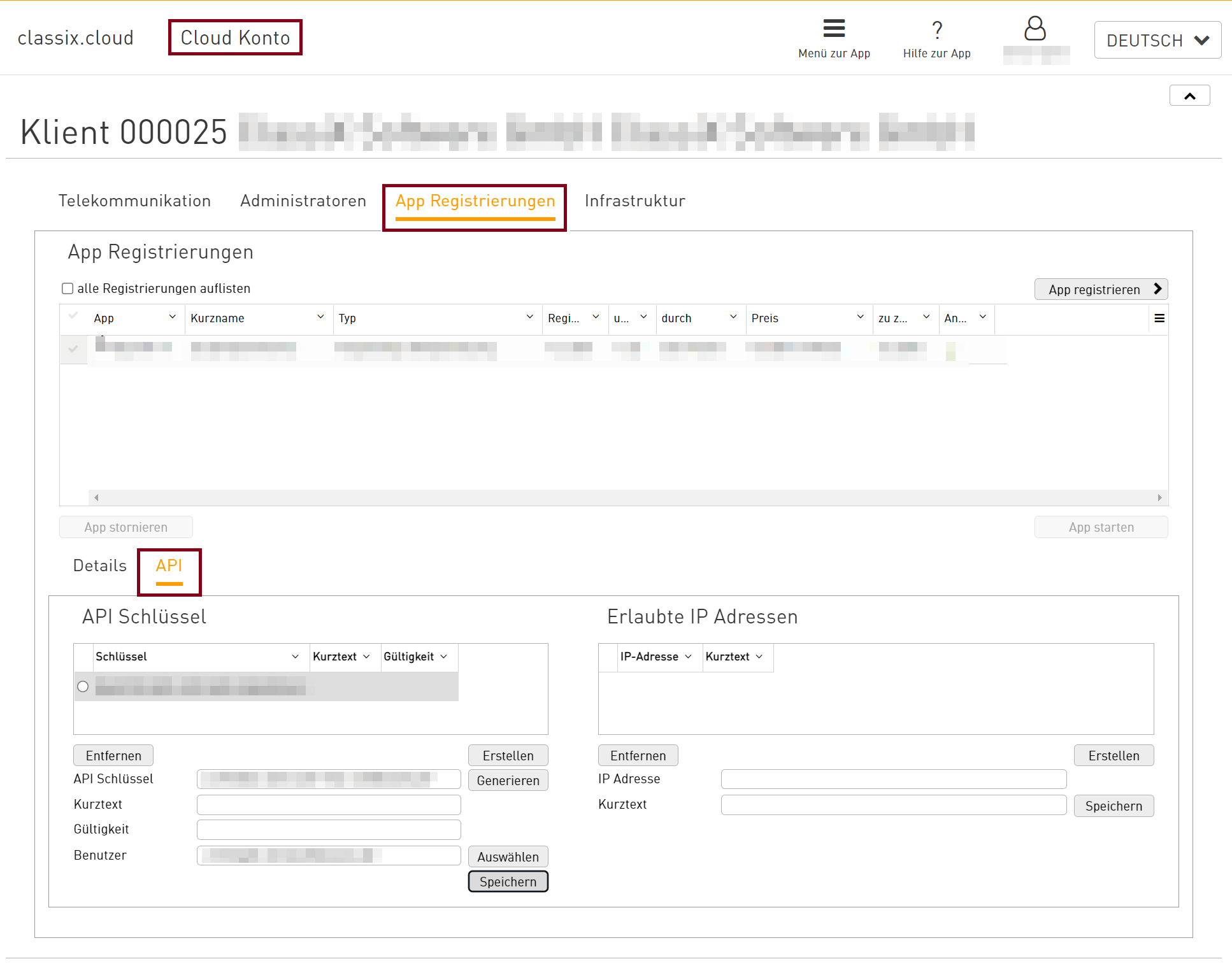
However, you first need an API key, which you can generate within your cloud account.
There you will find the API section under App Registrations in the lower area. Generate a key and a user there. After saving, you can use your API key directly.
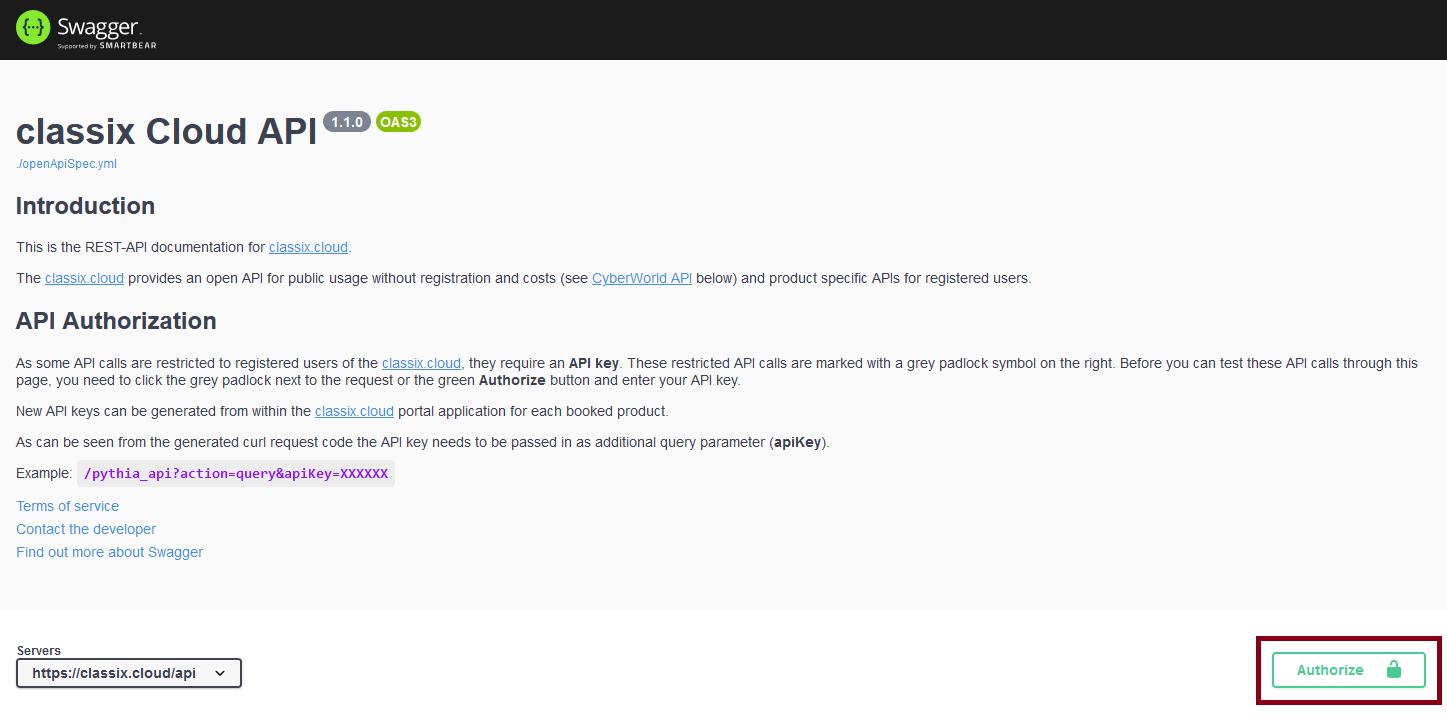
Within our PYTHIA API documentation, you can now store your key using the Authorise button:
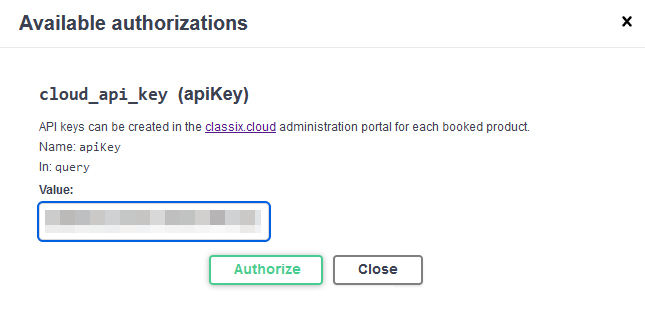
You can upload or update your own data via uploadDataSet.
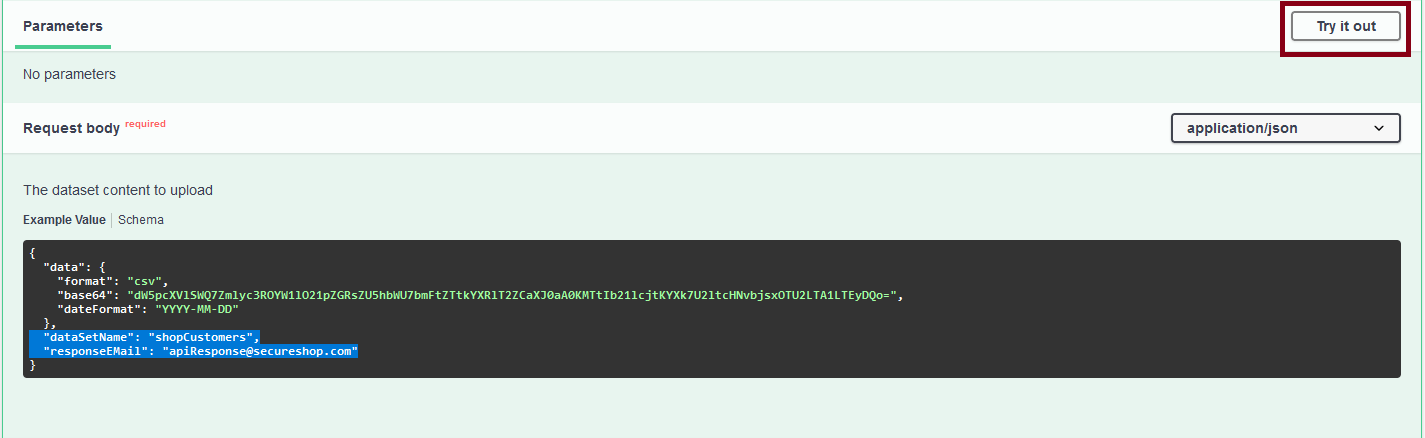
You should create the classification term listed as dataSetName in your database in advance or simply omit the line. Of course, you must also adjust the response email.
The example transferred in base64 contains the following data:
uniqueId;firstName;middleName;name;dateOfBirth
1;Homer;Jay;Simpson;1956-05-12

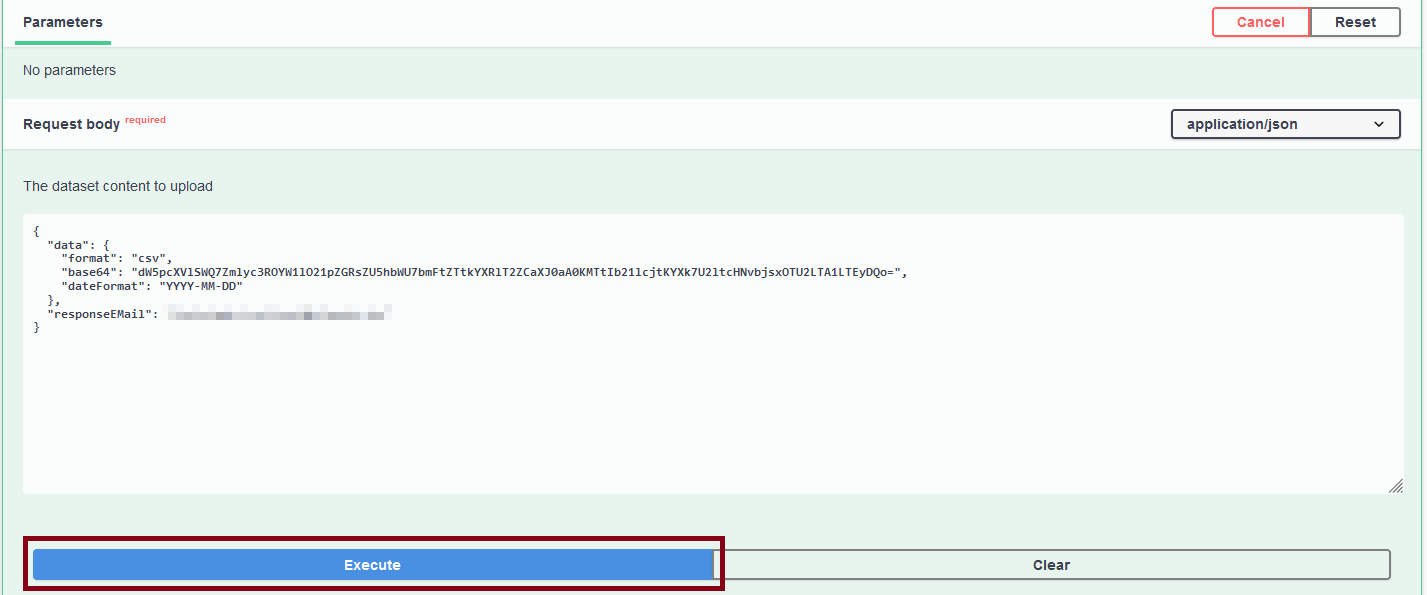
Use the Try it out button to adjust the data to be sent as suggested and then send it by clicking Execute.
You will receive the response information directly with the unique jobId.
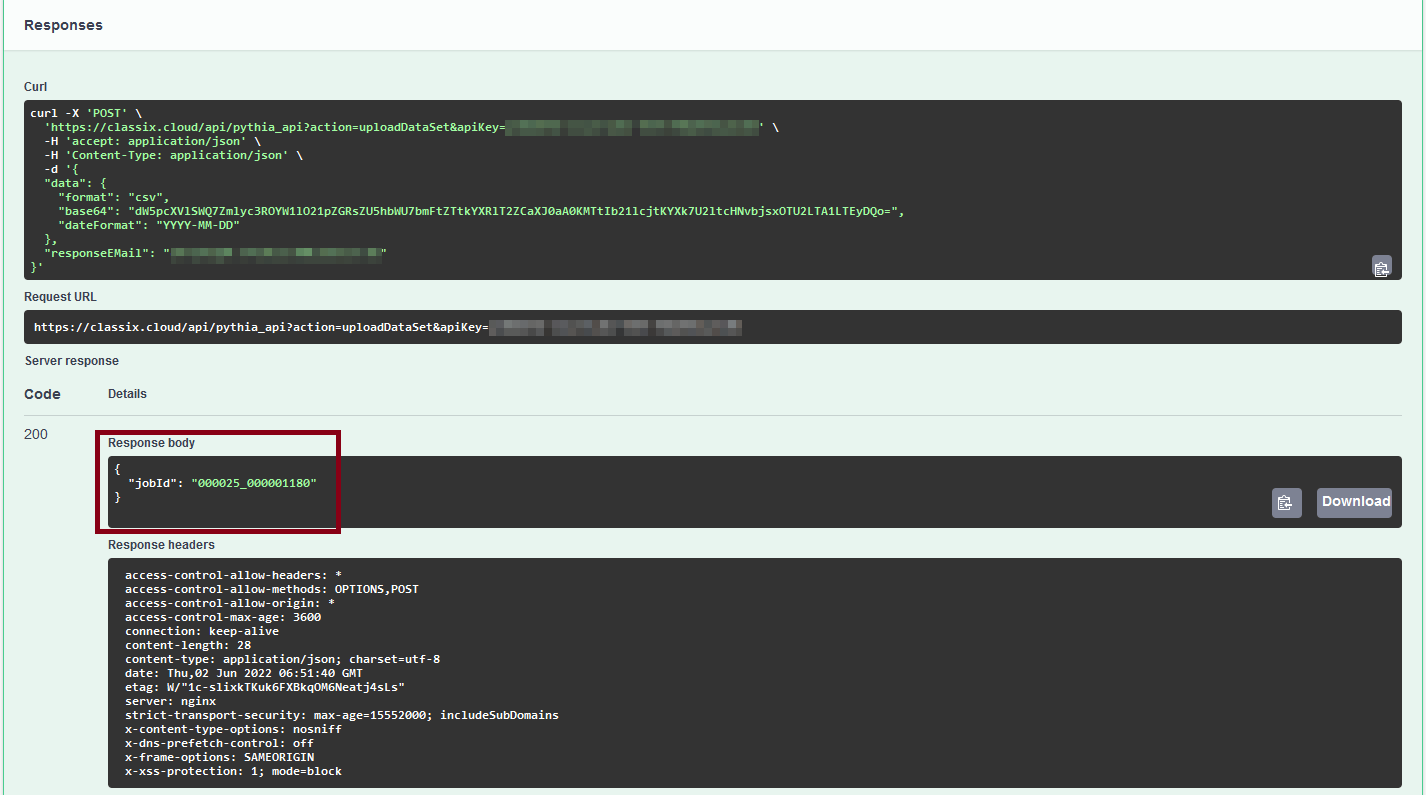
This means you can use getTasks to see which of your jobs are still running, or simply wait until the email arrives.